

USB Safely Remove is a USB device manager. It saves time and extends user abilities on active work with flash drives, portable drives, card readers and other gadgets.
The main disadvantage of using built-in Windows safe removal tool is that in case of having several hot-plug devices it is quite difficult to recognize a needed to stop device – the most devices have the same name – “USB mass storage device”.
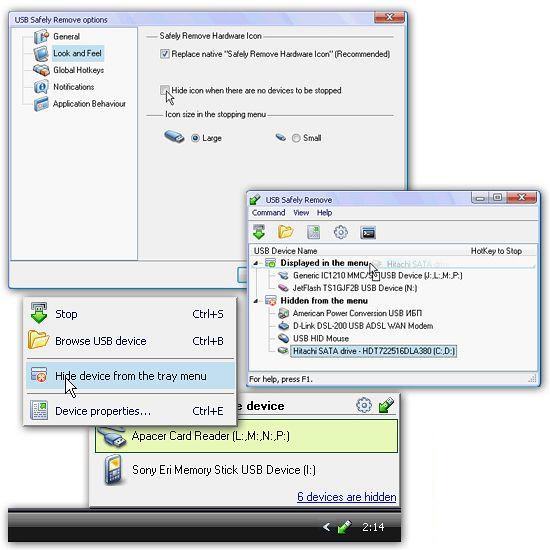
In addition, Windows does not let you hide a device you would not want to stop from the menu. USB Safely Remove saves you from these problems and offers an original and multifunctional stopping menu, which displays actual device names with icons. Using this menu you can find and stop a device in a snap!
Like to do everything using the keyboard? Now you can stop and view devices with only ONE hotkey! No need to remember keyboard shortcuts for each device. Being in any application, press the key combination (Win+S by default) and you will see the stop menu. Use the Up\Down Arrow keys to select the device you need and either press Enter to stop it or Ctrl+B to view the contents of the device disks. Also you can assign a dedicated hotkey to stop a certain device.
Another USB Safely Remove feature that distinguishes it from similar software is starting any applications not only after connecting a device, but also before removing it. The autorun feature allows you to set up data backup before disconnecting a removable hard drive, to run Total Commander with the contents of the pen-drive, automatically unmount an encrypted TrueCrypt drive before disconnecting the USB media, etc.
USB Safely Remove has a powerful and convenient command line: usr.exe. It allows you to automate work with any devices. For example, you can automatically stop devices according to schedule or in case of any other event. In addition the command line tool of “USB Safely Remove” allows to “return device back”. Another important difference between the program and the standard Safely Remove Hardware icon is the possibility to see and stop any kinds of hotplug devices. If USB Safely Remove does not display the device you need, try enabling the “Display all storage devices” checkbox in the program options.
Some kinds of external devices (e.g. SATA drives from Silicon Image), are true hot-plug devices, however their drivers does not support “safe removal” function. Such devices are not displayed in native safe removal tool and can be stopped only via disabling in Device Manager. It is a tiresome way, because it requires many actions to do, moreover you must enable the device manually after you connect it next time. USB Safely Remove allows to stop even such devices, besides it detects automatically what devices must be “safely removed” and what must be “disabled”. Also the program enables “disabled” device automatically on its next connection, thus it makes working with the device absolutely the same as with usual device.
Main features:
Displaying what prevent a device from being stopped
Safe removal via hotkeys
The handy menu with device icons
Real device names and ability to rename them
Feature to hide unnecessary to stop devices
Program autorun on device connection\disconnection
Command line for safe removal
Hiding of “empty” card reader drives
Card reader memory cards ejection one-by-one
Returning just stopped device back!
Other features:
System tray icon hiding when there are no devices to be stopped
Displaying volume labels instead of device names
Let you manage drive letters
Ability to mount storage devices as a NTFS folder
Exploring device drives in an alternative file manager (e.g. Total Commander)
Let you prevent Windows from assigning a specified drive letters to hot-plug devices
Improvements
- Sound notification is now played after the device stop in Windows 10 (as the native safe removal does)
- Improved device context menu for better usability
- Language strings improvements
- “Unable to stop\return” dialogs now display button on the TaskBar (you can now switch to it with Alt+Tab)
Changelog:
Improvements
- On uninstallation the program activates back all the disabled devices
- Japanese language added, some other languages were updated
- Removed unnecessary text files from the installation package, rewritten readme.txt
Bug fix
- Error could happen when you reorder items in the list of services (Settings -> Device Stop tab)
- Unneeded disabled devices could be displayed
- Some types of card readers couldn’t be appropriately detected or stopped
- BitLocker encrypted card reader cards were hid when “Hide drive letters” option is enabled
- The “Device is going to be disabled” message could be displayed inappropriately
Windows 11/10/8/7/Vista/2003/XP
Thanks to DimitarSerg release
Useful for old Windows XP or Windows 7. Windows 10 is not recommended (Win10 USB drive can be directly remove now)
(Cracked Silent Install Repack) x86

5 thoughts on “USB Safely Remove 7.4.1.1336”
Could you re-upload please.
done
Thankks Bro nice
God bless you
Detected as Virus
Awesome. I’ve one external USB Passport HDD that for whatever reason just refused to remove on a couple of my machines. YES they might eventually do so after maybe clicking the Windows USB safely remove for the 10th time OR of course doing so in device manager but silly I needed to resort to that. Sure enough after downloading this, extracting and installing it works like a charm, removing and even restoring 1st attempt.